
1. The Register Page
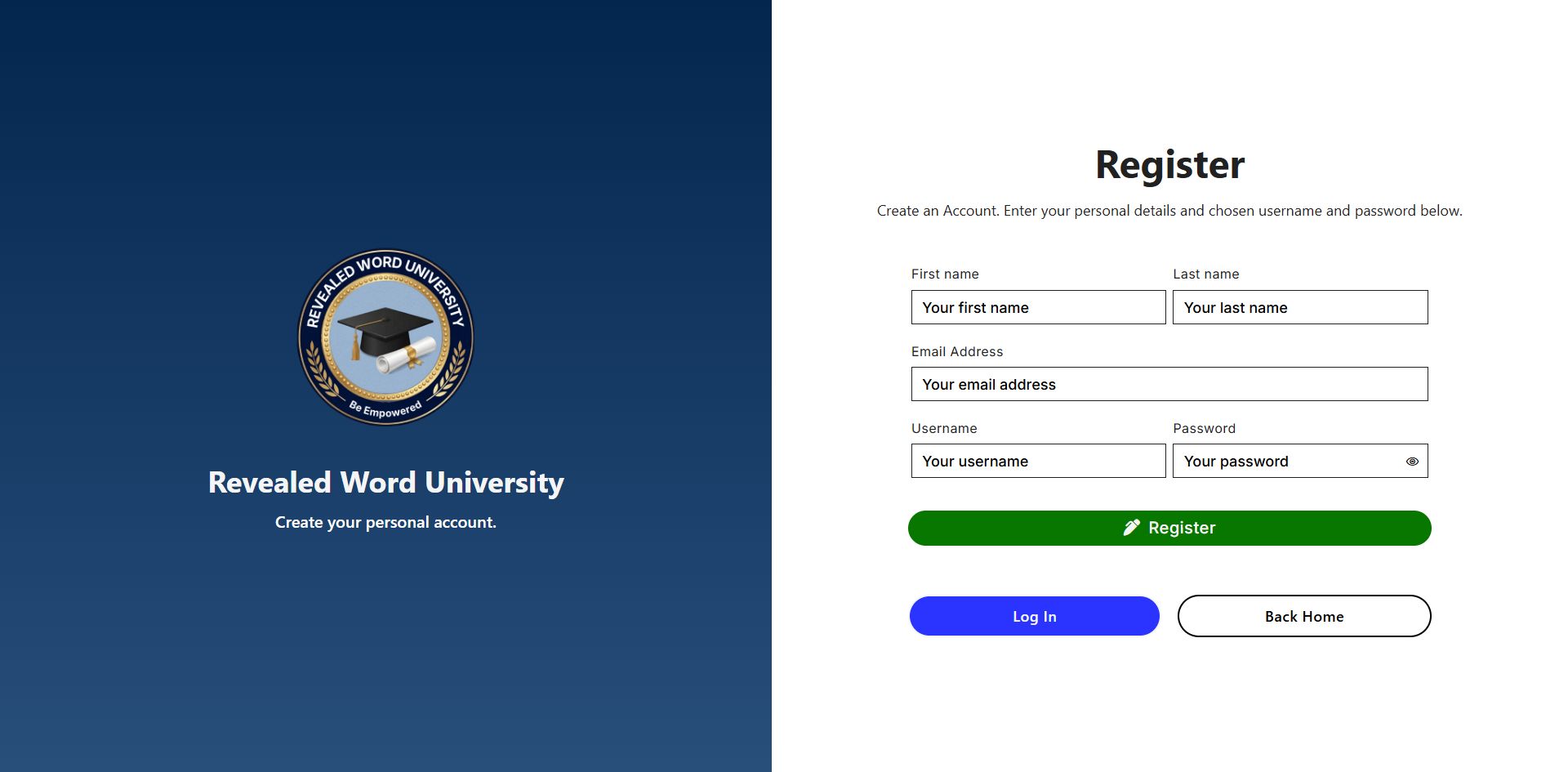
First, visit the Register page and enter your details. This includes:
- Your first name
- Your last name
- Your email address
- Your user name
- Your password
Then click the “Register” button.
2. The Activation Email
After registering on the website, you will not be able to log in yet. You must first activate your account.
You should receive an email within a few minutes of registering on the website. The email will have an activation link in it. Click on the activation link and you will be taken back to the website and your account will now be verified.
Once your account has been verified, you will be able to log in.
3. Logging In
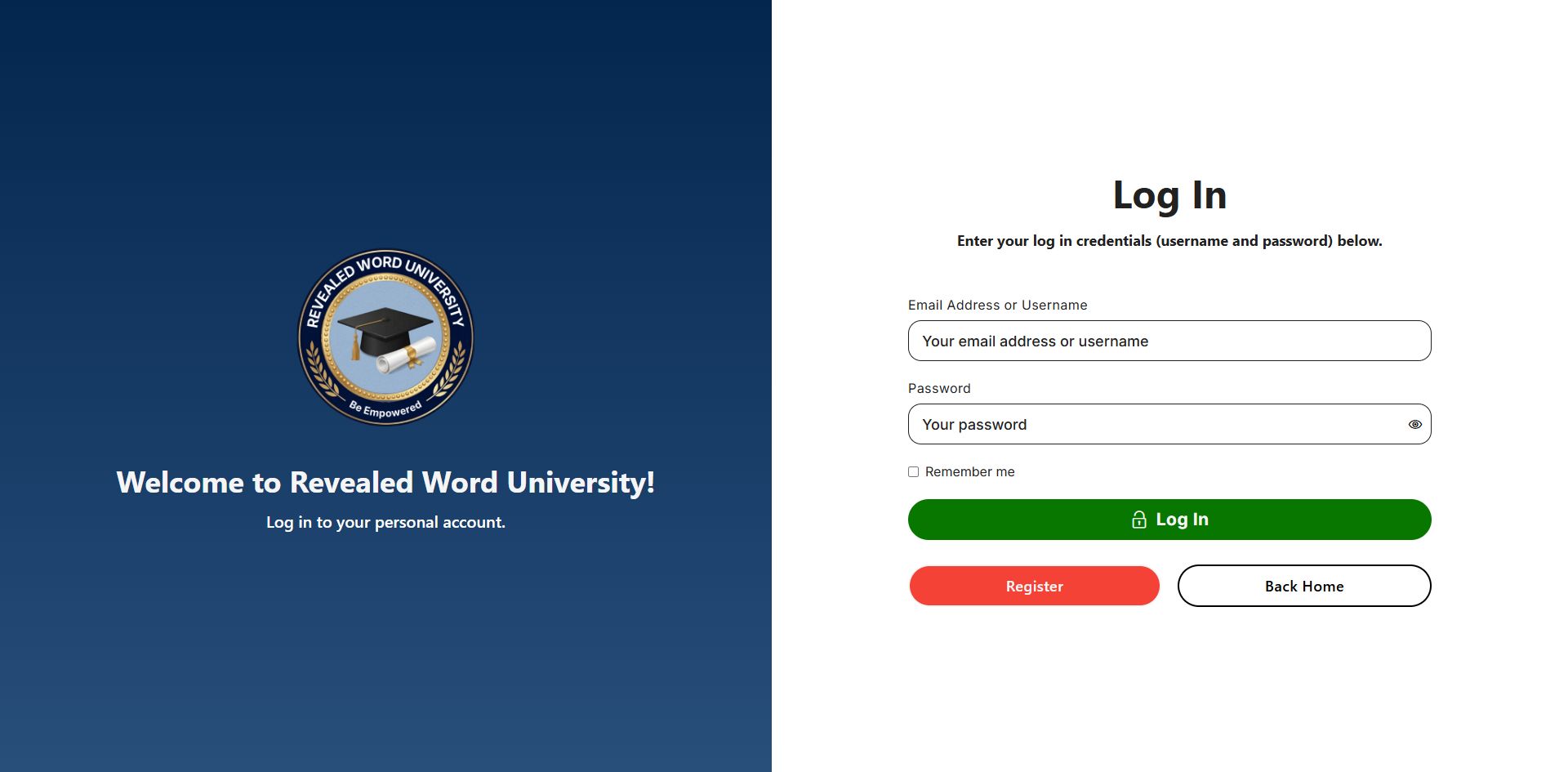
Now that your account has been activated, you may log in. To do that, visit the Log In page. Here you need to enter your log in credentials. You must:
- Your user name or your email address.
- Your password.
- Click the “Remember me” checkbox.
- Click the Log in button.
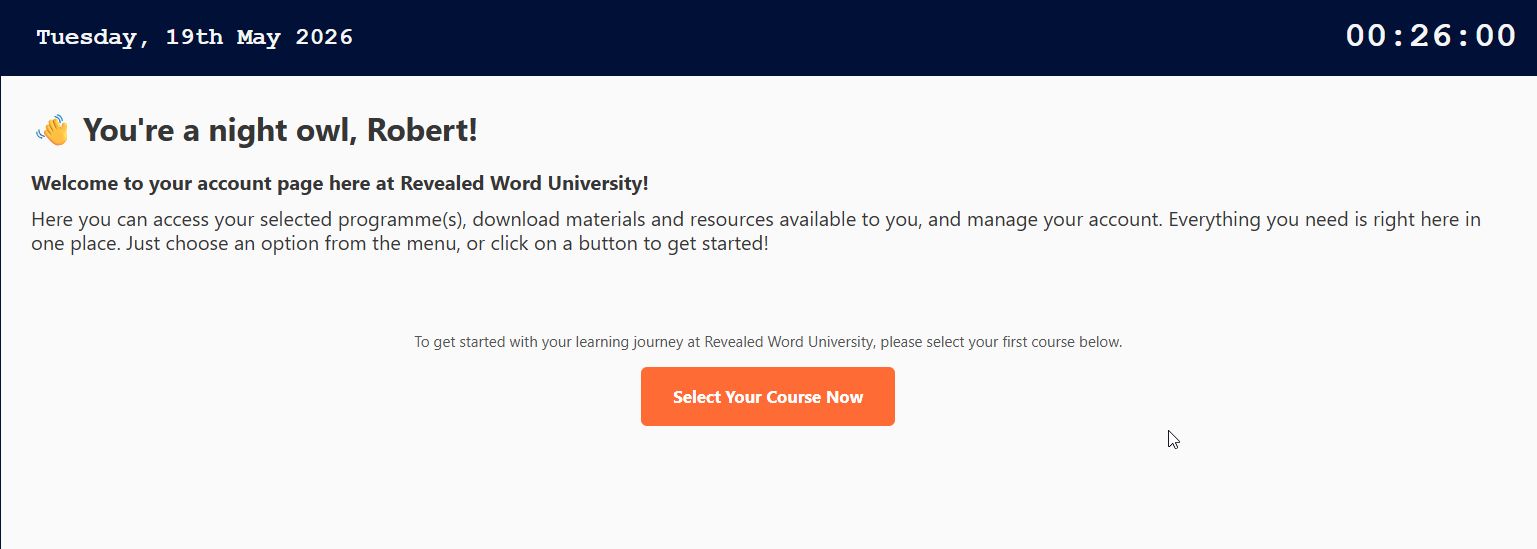
After clicking the Log in button, your personal account page will load. The first time you log in, you will see a message that says “To get started with your learning journey at Revealed Word University, please select your first course below.” Below that you will see a button that says “Select Your Course Now“.
Important: You will see this message and button the first time you log in, and two more times after that, if you have not selected a course (certificate or degree programme). If you do not select a course after logging in three times, your account will automatically be suspended, and you will not be able to log in again.
If you were unable to select a course, or have a valid reason for not selecting a course during your first three visits, you will need to contact the University’s Student Support Team for assistance. The can unlock your account and help you select your course.
4. Selecting Your Course
After clicking the “Select Your Course” now button, you will be able to choose a College first. For example, if you want to study for a Christian MBA, you will select the “College of Business”. To study for a “Bachelor in Ministry”, you will select the “College of Theology”.
After selecting the College, you will see a list of courses offered by that College. For example, the College of Theology offers a Certificate in Ministry (must be complete before doing a Bachelor’s degree), a Bachelor in Ministry degree and a Bachelor in Theology degree.
Next, select a Certificate or Degree course. At this point, you can choose to pay for the entire course, or you can pay for a single module (starting with the first module).
Once you have paid for the entire course, or the first module of a course, the text book(s) for that course will immediately be available for you to download. You will also see a list of Chapters you can click on.
5. Studying For Your Qualification (Course)
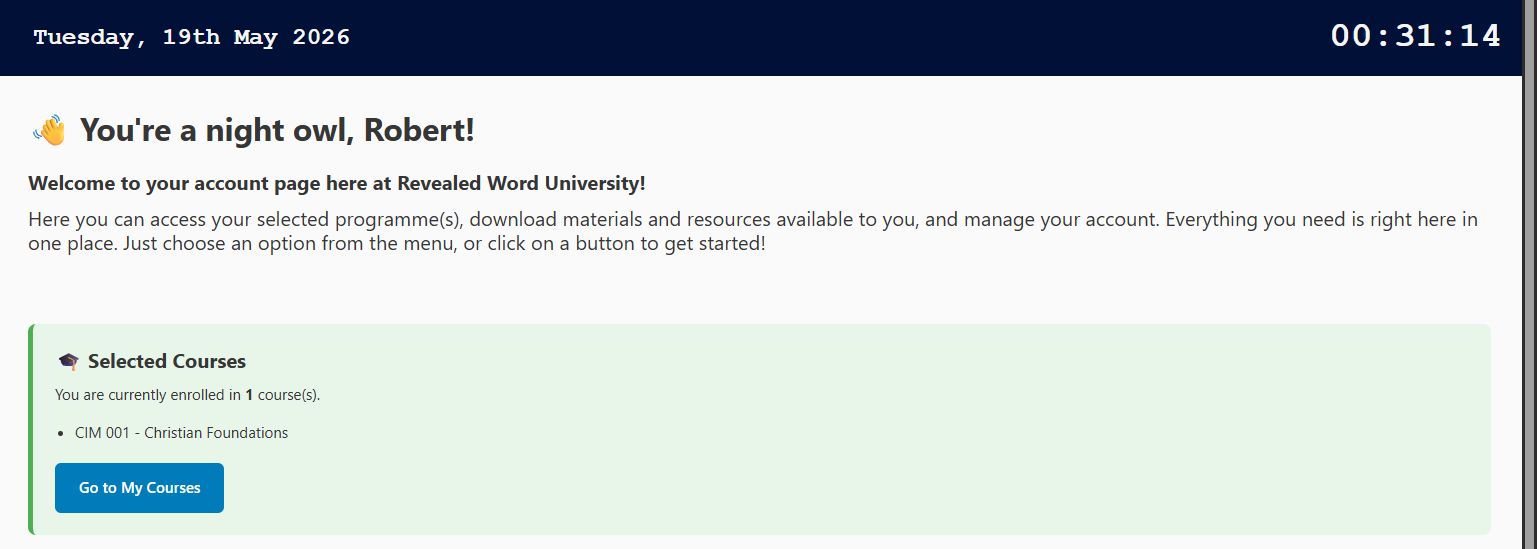
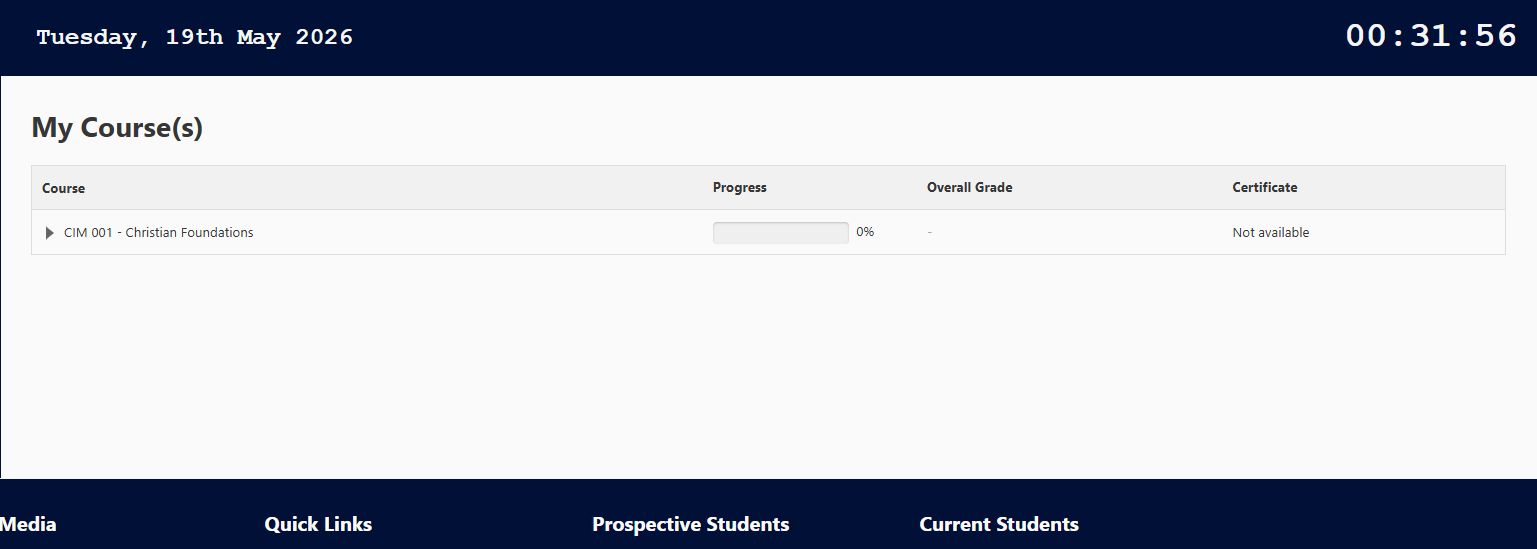
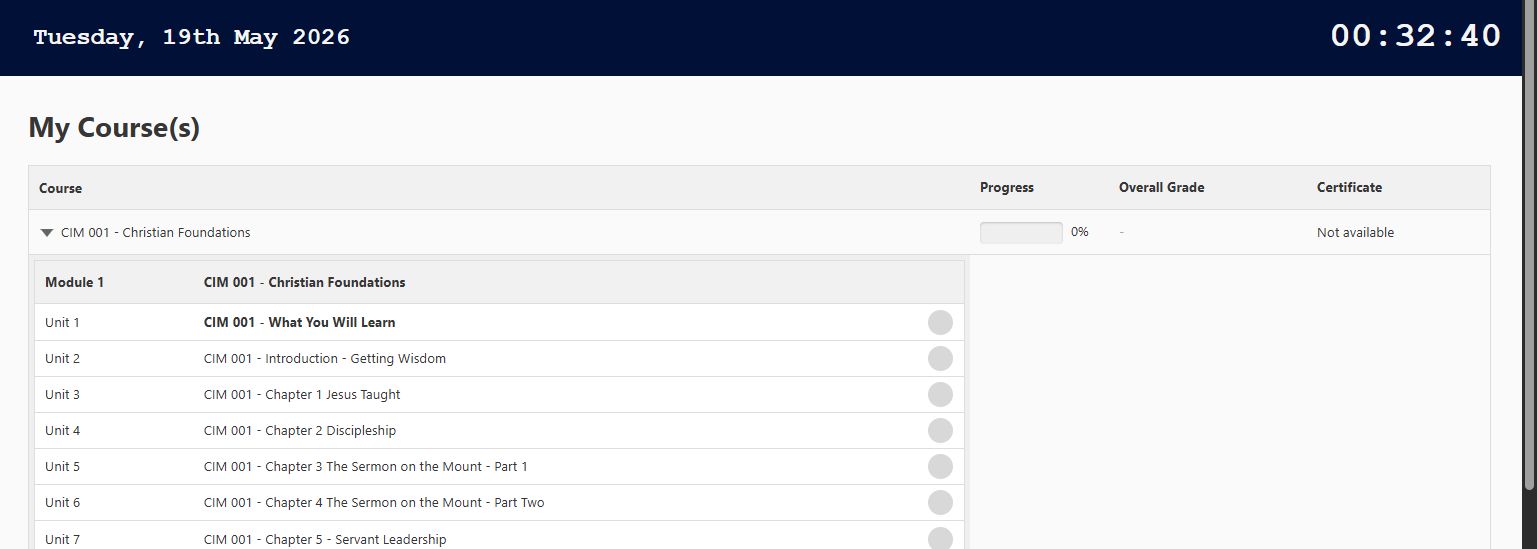
If you have paid for the whole course, all of the text books will be available for you to download. On your personal account page, you will also see details about your course, including a list of modules and chapters for you to complete.
If you have only paid for a single module, you will be able to download the textbook for that module. As you complete each module, you will be able to pay for the next one and repeat the process.
An easy to use Course Outline allows you to click on a chapter and read the content or instructions for that Module/Chapter – for example, it may tell you to read certain pages in your textbook, or it may show a video lecture. Once you are done, you can click the “Mark as Complete” button and move on the the next Chapter or Module.
Some Chapters have Tests attached to them. Some are just for revision to help you remember what you are learning. Some are Tests you must pass before you may continue on to the next Chapter or Module.
If you need help at any time, you are welcome to contact the Lecturer or the Student Support Team.
6. THAT'S ALL
That’s all you need to know about Registering and Studying for your Course. Once you have completed your course successfully, you will graduate and receive your Certificate or Degree.
We wish you all the best and every success with your studies!